
JLV BroadStar Tech Support – 561-203-6965
customerservice@broadstar.com
When You call BroadStar Tech Support this is what they are going to recommend for you to do over the phone. So, if you know this – you can try these things before you call.
Given my background doing tech support and installing network systems over the years, I created a handy guide to assist you in resetting your own devices before you call BroadStar. Nine times out of ten this will help you get reconnected. These are the same normal things that BroadStar support will walk you through over the phone. I tried to make it as simple as possible and included some pictures to make it easy to identify the devices. I hope this helps.
At the end I have some suggestions to help you make your Internet/TV connections more reliable.
Unable to Connect to Wi-Fi
Most often this is because the Wi-Fi box itself has lost connection with the internet network. This happens sometimes after a power outage and can even just occur for no reason at all. This is the TP Link Box that most people have.
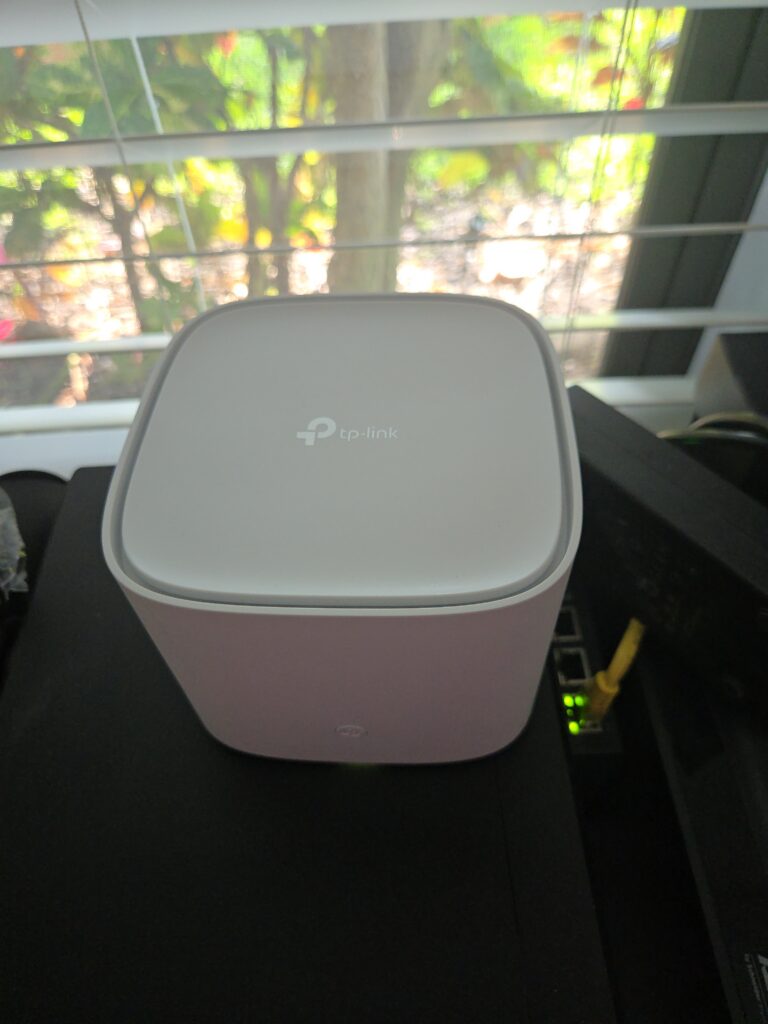
Simply turn this box over and unplug the small round black power plug from the back of it. Wait a few minutes and then plug it back in. It may take up to 5 minutes to reset but after that you should be able to get back onto your Wi-Fi.
Internet Down
If after you reset/ reboot the Wi-Fi Router (as above) you get a message that the connect to the Wi-Fi is connected but it says “No Internet Available.” Then you have a different issue. You need to call BroadStar support at this point.
TV Service Down
If you can connect to Wi-Fi with your other devices but your TV is not working – you may need to reboot your Fire Stick. This happens sometimes when it looks like the TV is connecting but you cannot get to the guide or a TV show or a channel does not start or connect. In this situation your best bet is to reboot the Fire Stick.
The Fire Stick can become disconnected from the network after a power outage or sometimes after a Fire Stick system update. Anytime you have any kind of weirdness with the TV this is a good place to start – just reboot the Fire Stick.
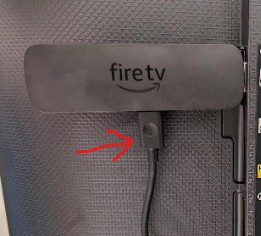
This is very simple – On the side of the Fire Stick there is a power cable attached. Unplug this power cable (shown in this photo with the red arrow) and plug it back in. That will reboot the Fire stick. You do not need to disconnect any other cables or plugs – just that one. You can leave your TV on during this process and once you plug it back in you should see the Fire TV logo on the screen. A few minutes later everything should work as normal again.
MENUS NOT WORKING? – If when you turn on the Firestick you get the menu but you cannot browse or connect to anything. Then do these simple steps to reboot the firestick from inside the program:
1- Got to the top menu – go all the way to the left side – now scroll down to the SETTINGS and click it to open it.
2 – On that menu look for MY FIRE TV. Scroll to it and select it.
3 – Now scroll down and select RESTART. That will restart the programs and the menus should work after that.
Still not working?
Go ahead and call BroadStar Customer Service – 561-203-6965.
FPL LIGHTNING STRIKE OUTAGE –
Friday June 19 at about 5pm there was a lightning strike during a thunderstorm that hit the Oak tree next to unit 2113. The strike bounced off the tree and hit the streetlight on the corner and from there traveled into the electric meter box which shorted out the service to the Internet Server Shed and the streetlight. FPL was called but it was BroadStar who got the electric working again within a few hours. It was several days before FPL showed up since no individual unit had its power out. The power surge from the strike fried a piece of equipment in the shed that had to be replaced. A temp replacement was installed for overnight and since then a brand new one (and a spare backup) were put into the shed the next day. As the services came back online many of the units reported damage to their routers and or Wi-Fi devices. The majority of units came back online on their own. Broadstar worked to get everyone else back online over the next several days.
Monday June 22 FPL arrived to check the electric meter and found no problem.
Tuesday June 30 the electrician was able to get the streetlight working again and discovered the photocell was fried (that turns it on when the sun sets). We replaced that the next day and the streetlamp was back working.
This was not a BroadStar outage. This was an FPL power issue due to the lightning strike.
FPL POWER OUTAGE –
Friday, May 29 at about 2pm there was a community wide power outage during a thunderstorm. Several units reported Internet outage after the event. While this was not a BroadStar outage the event did cause some disconnections of devices from the Fiber Optic services. A few devices were shorted out by the power surge.
Most were able to get back online by restarting the Wi-Fi box. That is the white square box with “TP Link” on the top. Unplug the power line from the back for a minute – then plug it back in – wait five minutes to see if it reconnects.
Saturday May 30 midday BroadStar Tech support onsite to resolve the issues with those who were still offline.
This was not a BroadStar outage, in fact all BroadStar services were running fine the entire time. This was an FPL power issue during a thunderstorm.
If you work from home or do anything that requires a constant Internet connection – here are a few tips and trick you can do to help keep your connection connected:
Use a surge protector. When there is a power surge the spike in electricity can burn out any of the tiny wire connections in your devices. These will require a longer time to locate the problem and a delay for an onsite visit if a device needs to be replaced. Do not just get a box that says “Surge Protector” on the outside. Many of the extension cord / strips say this but they do not do an adequate job. Look for any box with a “Warranty” dollar amount listed on the front of the box. This will cost a few dollars more, but you will protect your devices connected to it with a warranty. I have collected on some of these warranty and they are quite real. One customer in Texas had his house struck by lightning and his entire custom computer rig was destroyed and the warranty replaced it all and even paid for the shipping.
Use a battery backup with surge protector. If you need to stay connected, even during a brief power outage, pick up a name brand battery backup. It doesn’t have to be very big or expensive. Name brands are APC, Tripp and CyberPower. These include a surge protector, so you don’t have to purchase one of those if you choose to go this route. When the power goes out the battery will take over for about 15 minutes and keep you connected until it returns. It is all automatic and happens in the background – you don’t have to do anything. If the power continues to be off – it will slowly turn off the battery power to each device. When the power comes back on it will go back to stand-by mode.
Redundant Internet connection. Jacqui and I have T-Mobile for our cellphone service. It comes with a Mobile Hotspot Internet connection included. It uses the Data that is included in your plan but will allow you to connect for as long as you need until the power comes back up. If you have a cellphone battery charger around – keep it charged just in case. You can use it to keep your cellphone charged during a longer outage. Since we live in the grid with the hospital it is rare to have a long outage, but you never know.
Share with a neighbor. Since all our BroadStar Wi-Fi systems come with a Guest Access set up. You may want to ask a neighbor if they would like to share Guest access between your two services. If either of your devices fail (yours or theirs) then you can see their Guest Wi-Fi listed (by default this is their unit number with the word Guest at the end) in your wireless network connections list – you can log in and use it until you get your situation resolved. Normally this does not come turned on by default. So you would probably have to ask BroadStar when they happen to be on the phone with you or at your unit to go ahead and turn it on. Guest accounts are also good for sharing your internet with visitors – that way they are not connected to your private Wi-Fi connection. These are completed separate networks so they cannot access any of your network devices. I will try to create a tutorial on how to set this up yourself. Since each Wi-Fi network router has a 2500 sq foot range you should be able to see several of your neighbor’s units listed in your list. If we all use the same password “JLVstrong” then everyone in the COA will be able to connect everywhere.
Community shared Guest networks. In my research and design of the fiber optic services, I had thought it would be great if we set up everyone’s guest network in the entire neighborhood to be turned on and use the same password. That way everyone would be able to connect during an outage or while walking the dog, to all the other 100+ connections. Since we do not pay for data usage and the guest connections are totally separate from the rest of our networks we could all use they freely knowing they are there if needed. Our speeds are so high you would not notice if anyone was using your guest network.
Neighborhood private network. Another future plan which we have already built into the system is a separate community-wide guest network. When BroadStar did the install we had them run fiber optic to several of the streetlamp post base area. They are buried just underground there. The plan is to connect them to Wi-Fi routers mounted onto all the streetlamp posts. This will allow us to have an always-on Internet access from most anywhere in the development. Similar to the guest networks they would all use the same password and be separate from all other accounts. This will also allow us to connect to these wi-fi connections should our inside devices fail and to connect solar IP cameras at the entrance to monitor in and out traffic. Just having the cameras visible will be good for security.
Still not connected. Lastly there are still about 21 units who have not connected to the Fiber Optic services. Since the lower cost community wide Internet service is now an amenity included with your maintenance fees it makes no sense to not have it connected. Even if you use as it a secondary Internet connection should your existing provider go down. Those who have chosen to try the reliable high speed fiber optic networks have since discontinued their expensive Comcast and AT&T services at quite a savings of $100 to $250 a month. The community contract means we pay for all 136 units to have connectivity even if they do not use the services. If you missed the free install period (prior to 1/1/2026) you can still get it installed for a one-time fee.